GlobalLink Web Studio Overview
You can use GlobalLink Web either in a browser or on the Desktop App. Most features are available on both, but it's important to note that GlobalLink Web Studio is only available on the Desktop App.
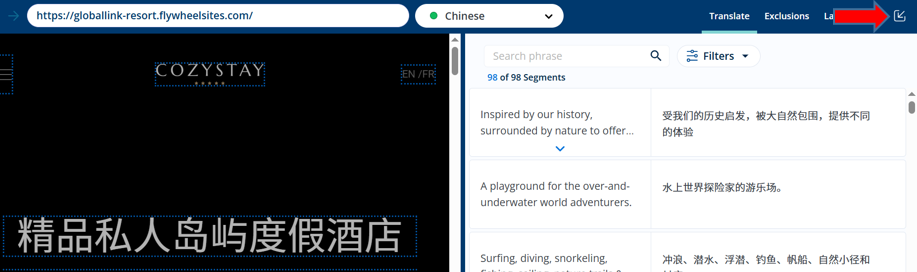
The GlobalLink Web Desktop App can be downloaded from the User dropdown menu in the top right corner of the browser platform.
Overview
GlobalLink Web Studio is a powerful in-context editing suite that allows your team to review and edit your translations directly in the context of your translated website. Studio supports other in-context modes as well, including the ability to exclude block-level elements from translation and apply formatting customizations on your translated pages.
Your access level on Studio will depend on your project requirements, which will be scoped out during your onboarding phase. But at a high level, GlobalLink Web Studio is your one-stop shop for any and all customizations that you want to apply in the context of a translated page.
Capabilities
There are three in-context modes available on GlobalLink Web Studio:
1: Translate - Allows you to review and edit your translations.
2: Exclusions - Allows you to apply No Translate rules on block-level elements.
3: Layout - Allows you to control the layout of your translated pages.
Regardless of which mode you're working in, you will be able to navigate your website like a regular user and even hit specific URLs on your website from the address bar. Only the domains listed on your project will be viewable and customizable on Studio.
You can also customize the docking of your editing pane, and you'll have full use of Developer Tools and emulators for a preset list of common devices.
All capabilities on Studio have supporting user guides on our Knowledge Base, which you will be able to access at any time on GlobalLink Web after your project is setup.
Launching Studio
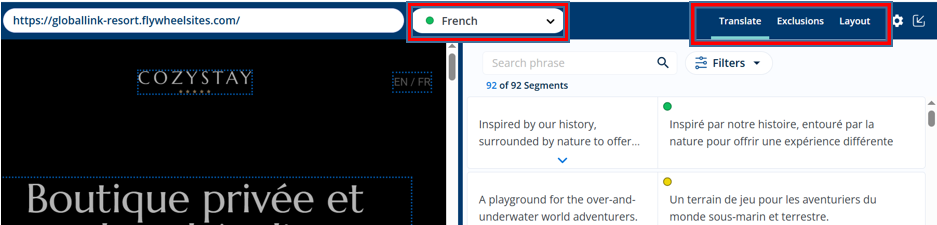
Depending on your access level, you can toggle to the other available modes and languages at any time from the top navigation regardless of which mode or language you launch initially:
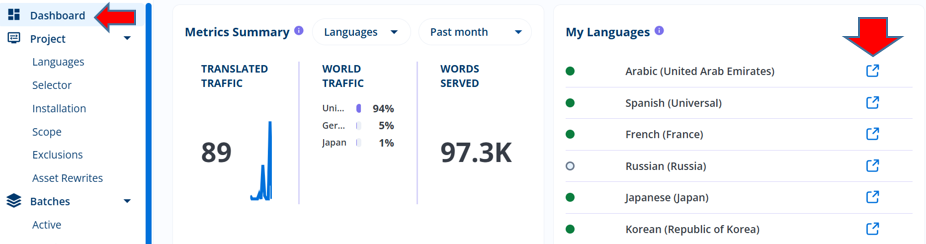
You can launch directly into Translate mode by clicking the external link to Studio next to the language you want to review and edit from your GlobalLink Web Desktop App. For example, from your Dashboard page:
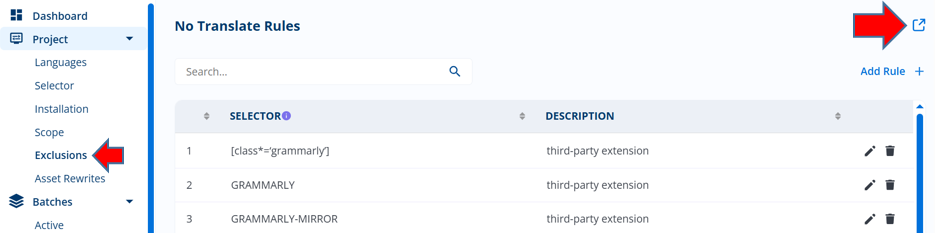
If you have access, you can launch directly into Exclusions mode by clicking the external link to Studio in the top right corner of your Exclusions page:
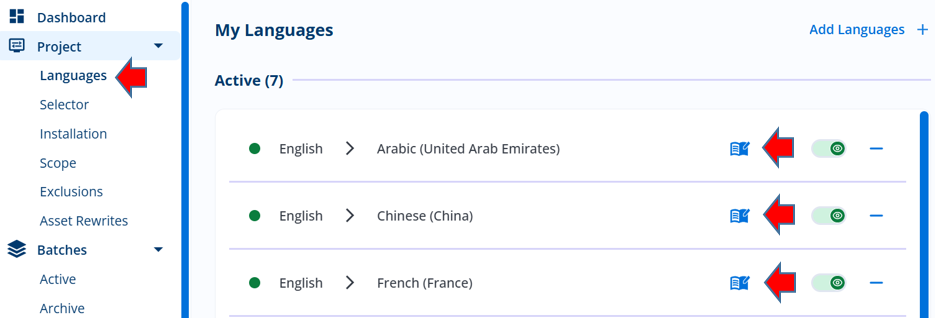
If you have access, you can launch directly into Layout mode by clicking the book icon next to the language you want to customize on your Languages page:
Exit Studio at any time by clicking the Close Studio link in the top right corner. Be sure to save any changes prior to exiting.